Covely Finance
User Manual & Guide
A comprehensive, step-by-step guide to mastering your wealth offline.
Core Philosophy
Covely is built on a privacy-first, local-first architecture. Unlike traditional personal finance applications, we do not require you to connect your bank accounts to our servers, nor do we collect or aggregate your sensitive financial information.
🔒 Absolute Data Ownership
All transactions, account balances, categorization rules, and portfolios are saved locally on your own machine. We have zero tracking, analytics, or remote database synchronization.
Key Security Pillars
- Local-only Database: Your financial data is written directly to an encrypted SQLite database on your local disk.
- Biometric Security: Enable Touch ID / Face ID or password vault locks to restrict access to your financial dashboard.
- Encrypted Backups: Secure your records with AES-256-GCM backup encryption. Define an automatic backup directory that points to a local folder (or a folder sync'd to a secure drive like iCloud or Dropbox).
💎 Covely PRO Upgrade
While the base app is extremely feature-rich and forever free, upgrading to
Covely PRO removes history boundaries (expanding beyond the 1-month dashboard visualizer), lifts the 20-rule limit on automation, and unlocks advanced 90-day cash flow projections.
Step 1: Dashboard Overview
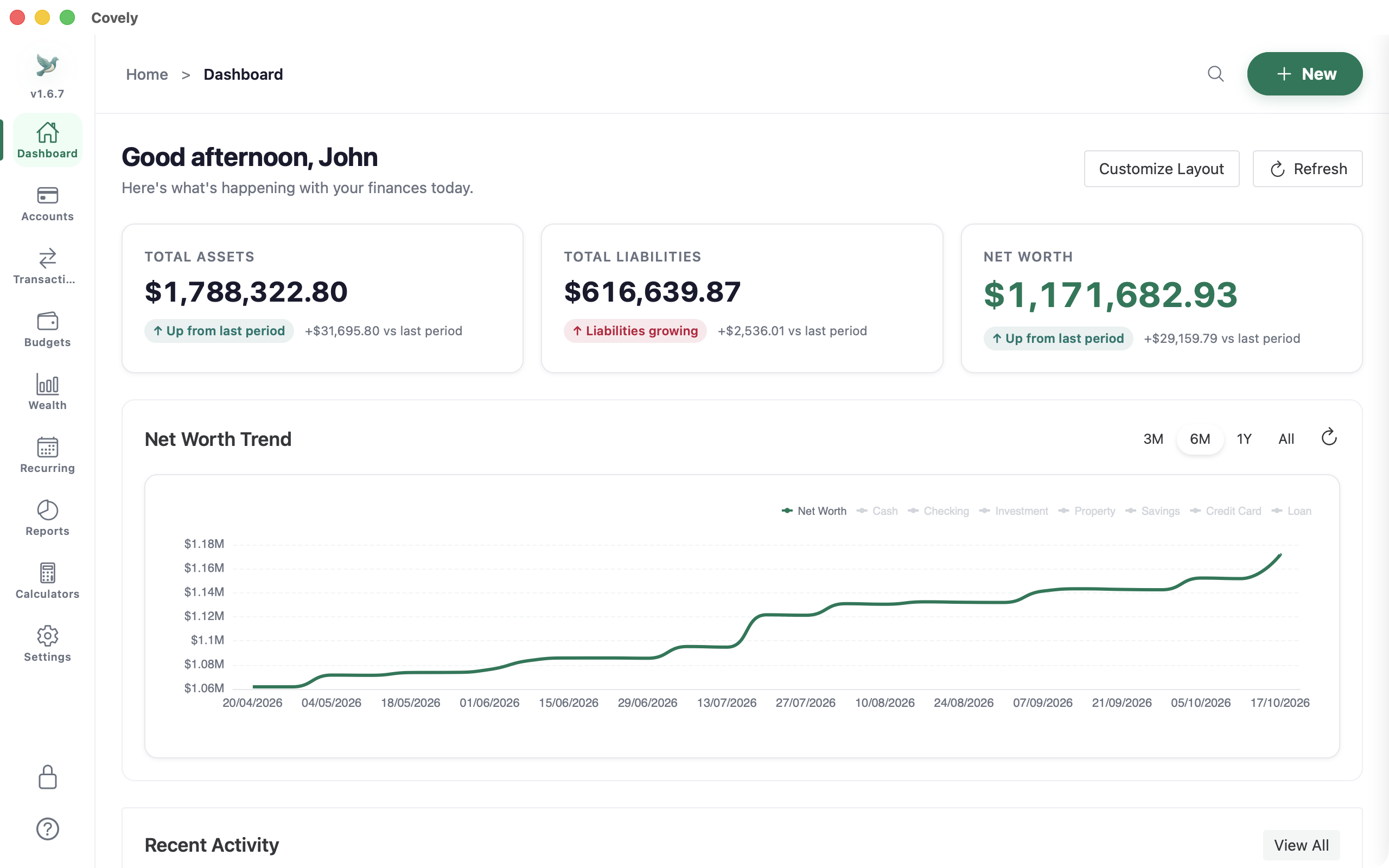
The Dashboard is the control center of your financial OS. Here, you get a bird's-eye view of your financial health, combining your assets and liabilities into a single unified metric.
- Total Net Worth: Aggregates cash, properties, stocks, and subtracts liabilities.
- Cash Flow Summary: Tracks income vs. expenses for the current period at a glance.
- Demo Mode: New installations feature a pre-loaded sample dataset so you can explore the features. Click "Clear Demo Data & Start Fresh" whenever you're ready to input your own records.
Step 2: Creating & Reconciling Accounts
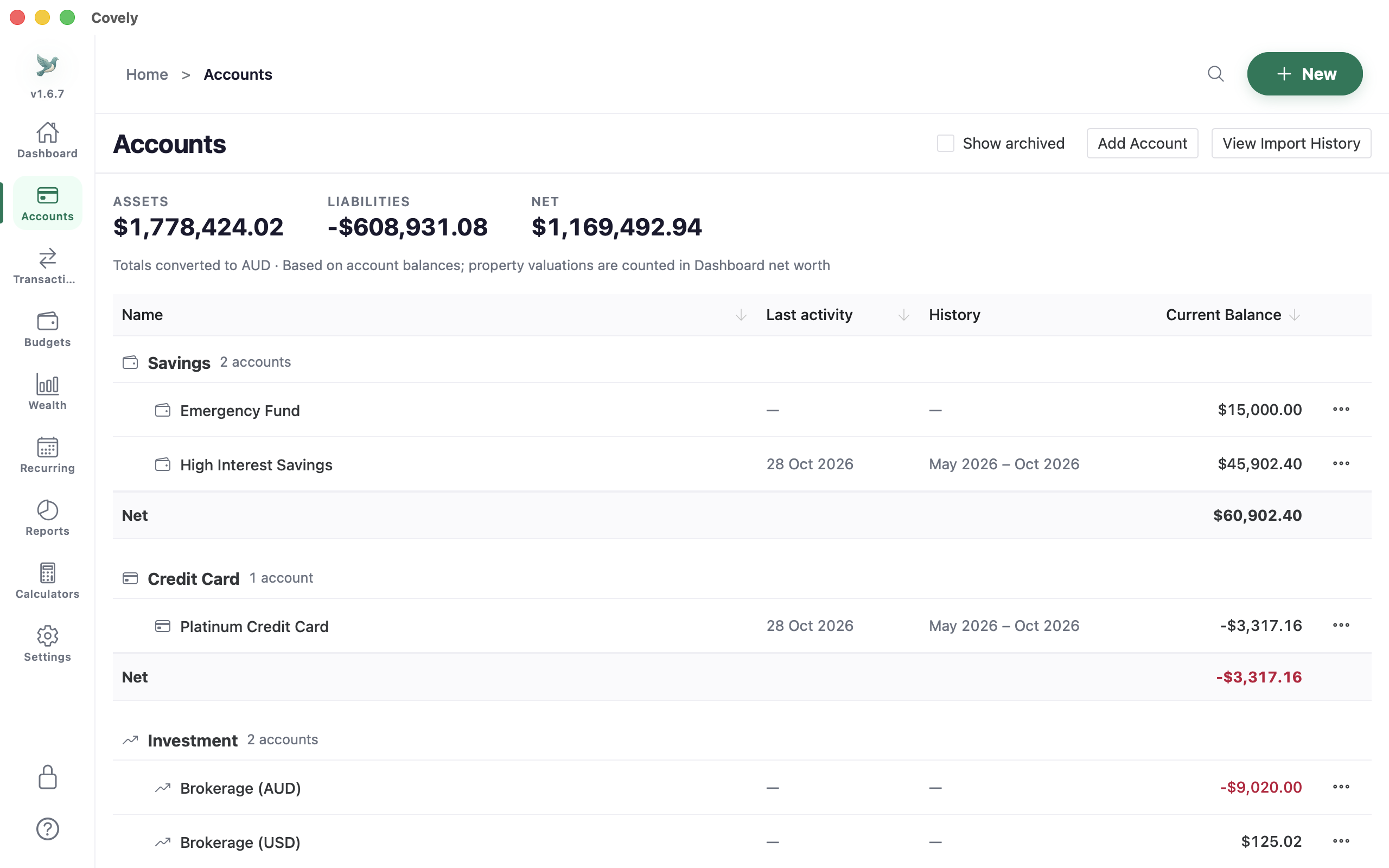
To construct your Net Worth, you must define your accounts. Covely supports multiple asset and liability types to map your entire balance sheet.
- Asset Accounts: Create checking accounts, savings accounts, physical property holdings, and investment portfolios. Mark primary accounts as favourites to pin them to the top.
- Liability Accounts: Track home loans, credit cards, auto loans, and manual liabilities.
- Account Reconciliation: Reconcile bank statement balances against your local ledger. Mark uncleared items and verify exact balance matches.
- Creation Process: Click the New Account button, specify the name, currency, starting balance, and account type to begin tracking.
Step 3: Importing Transactions
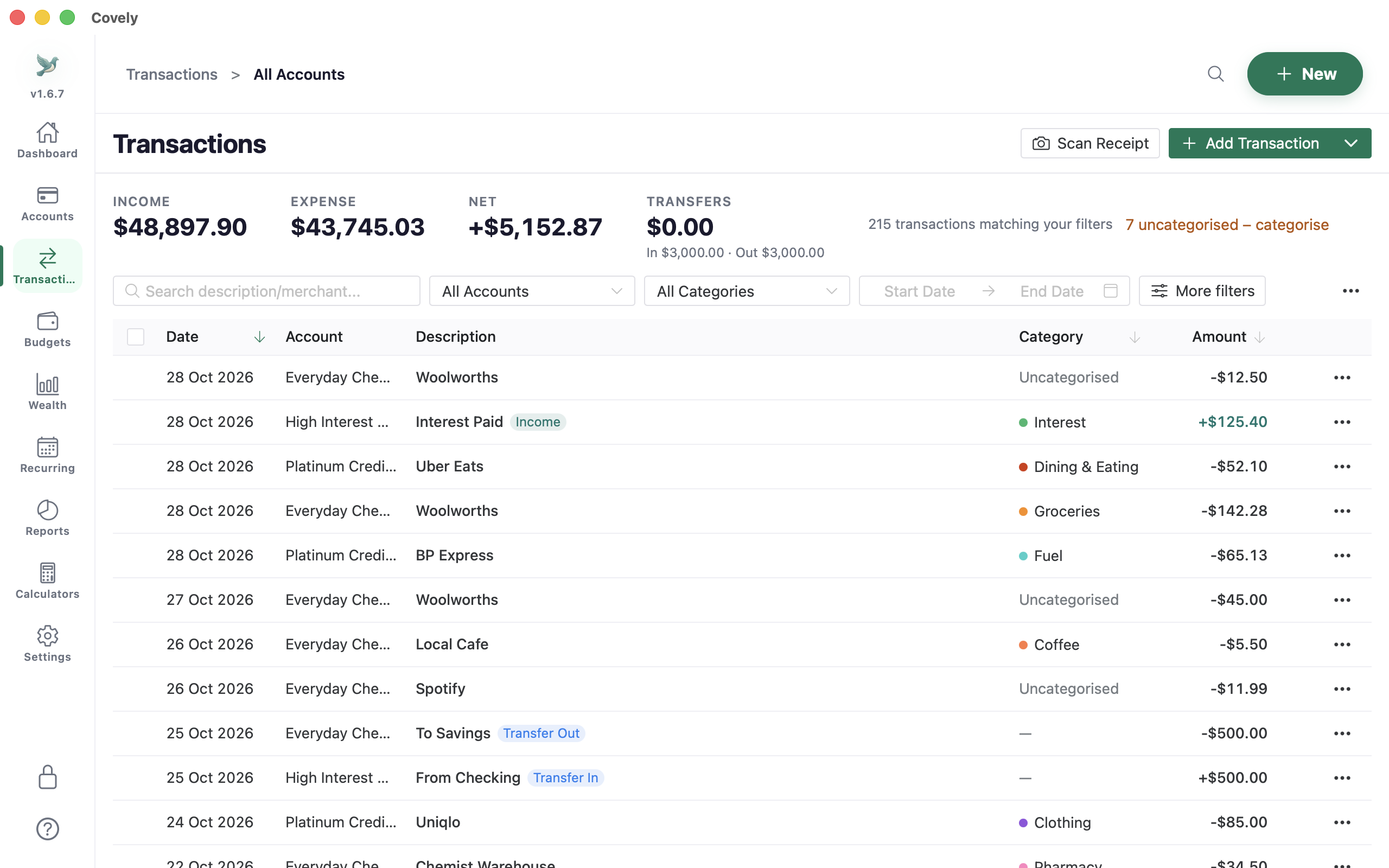
Keep your transactions ledger up to date by importing statement files or entering records manually.
- Supported Formats: Import CSV, QIF, and OFX formats directly from your online banking portal.
- Transfer Identification: The import system automatically scans for matches. If it finds equal amounts with opposite signs (e.g., $100 checking outflow matching $100 savings inflow within +/- 2 days), it prompts you to link them as a transfer.
- Manual Entries: Click Add Transaction (or + New in the top bar) to log cash expenses or manual entries. Use the arrow next to it to import a CSV, QIF or OFX file or record a transfer, and Scan Receipt to create a transaction from a photo.
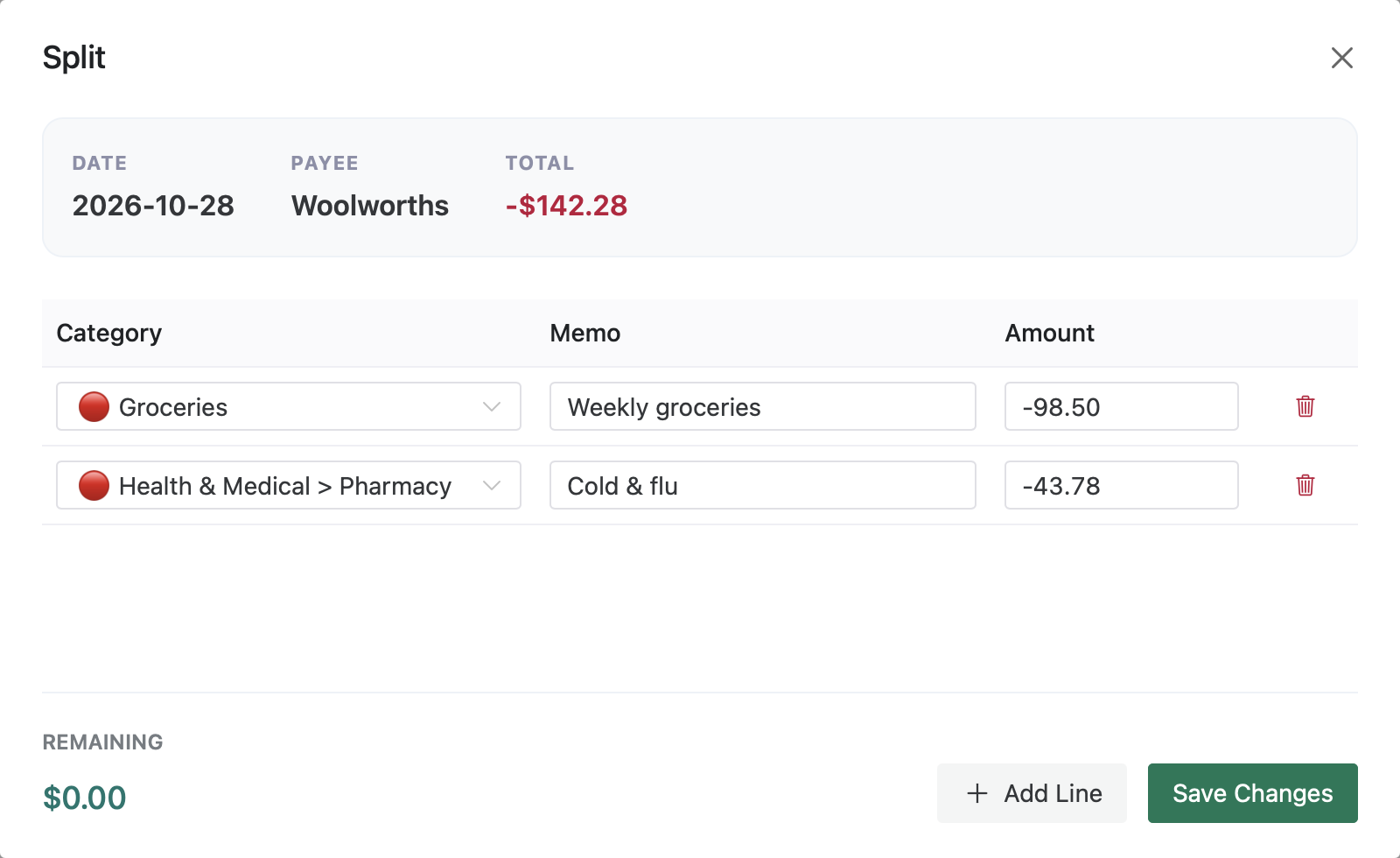
Transaction Splitting: You can split a single transaction into multiple categories. Open the transaction's ⋯ menu, choose Split, and allocate amounts to different categories until the remaining amount is $0.00.
Step 4: Managing Categories & Budgets
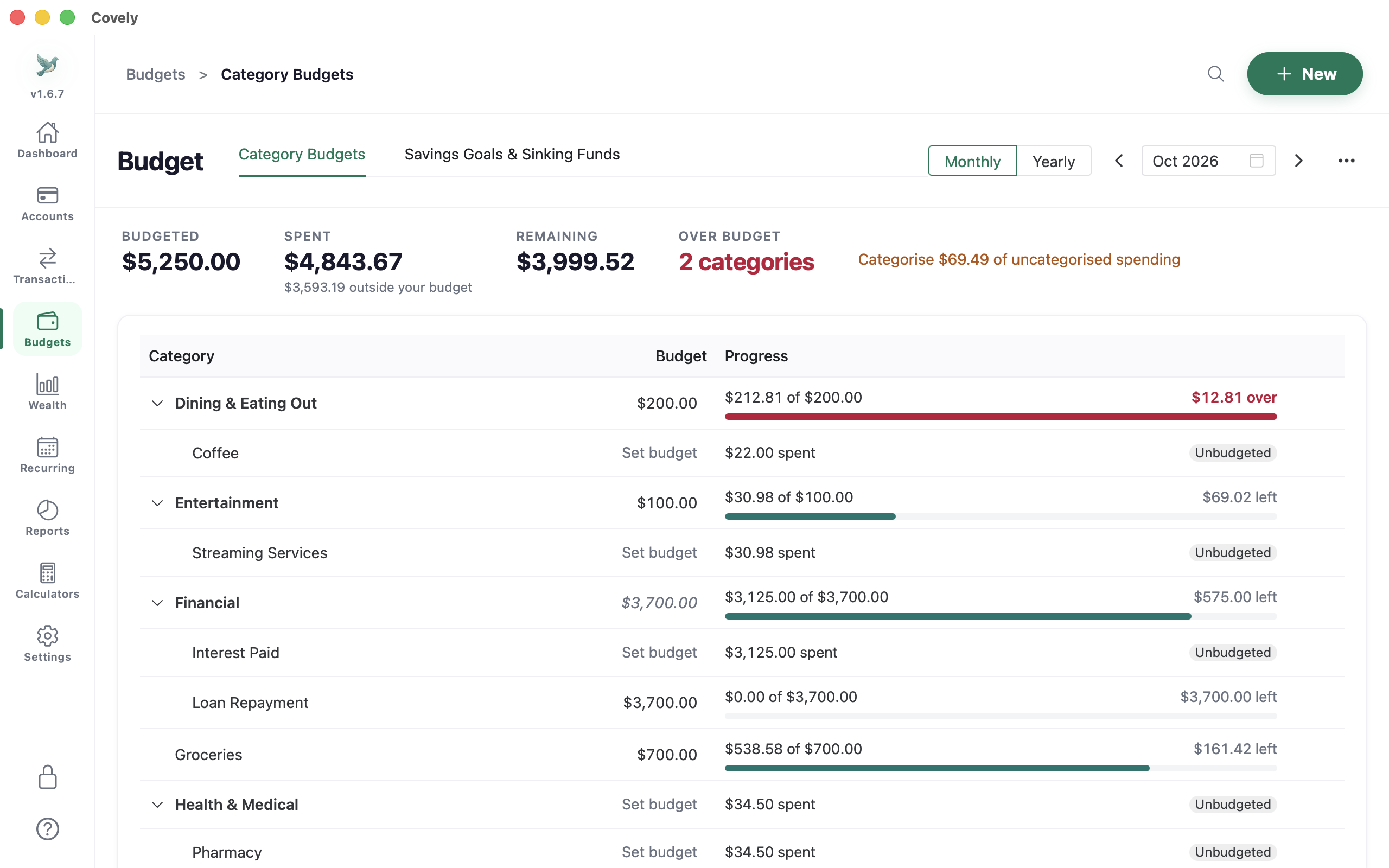
Group your expenses into granular categories to see where your money goes, and set limits to control your monthly spending.
- Custom Categories: Create, edit, and color-code categories matching your lifestyle.
- Budget Rollovers: Carry forward unspent funds from one month to the next. Go to Settings > Categories, edit a category, and toggle "Enable Budget Rollover".
- Rollover Caps: Restrict how much surplus budget can accumulate over time to ensure allocations remain realistic.
Step 5: Tracking Wealth & Holdings
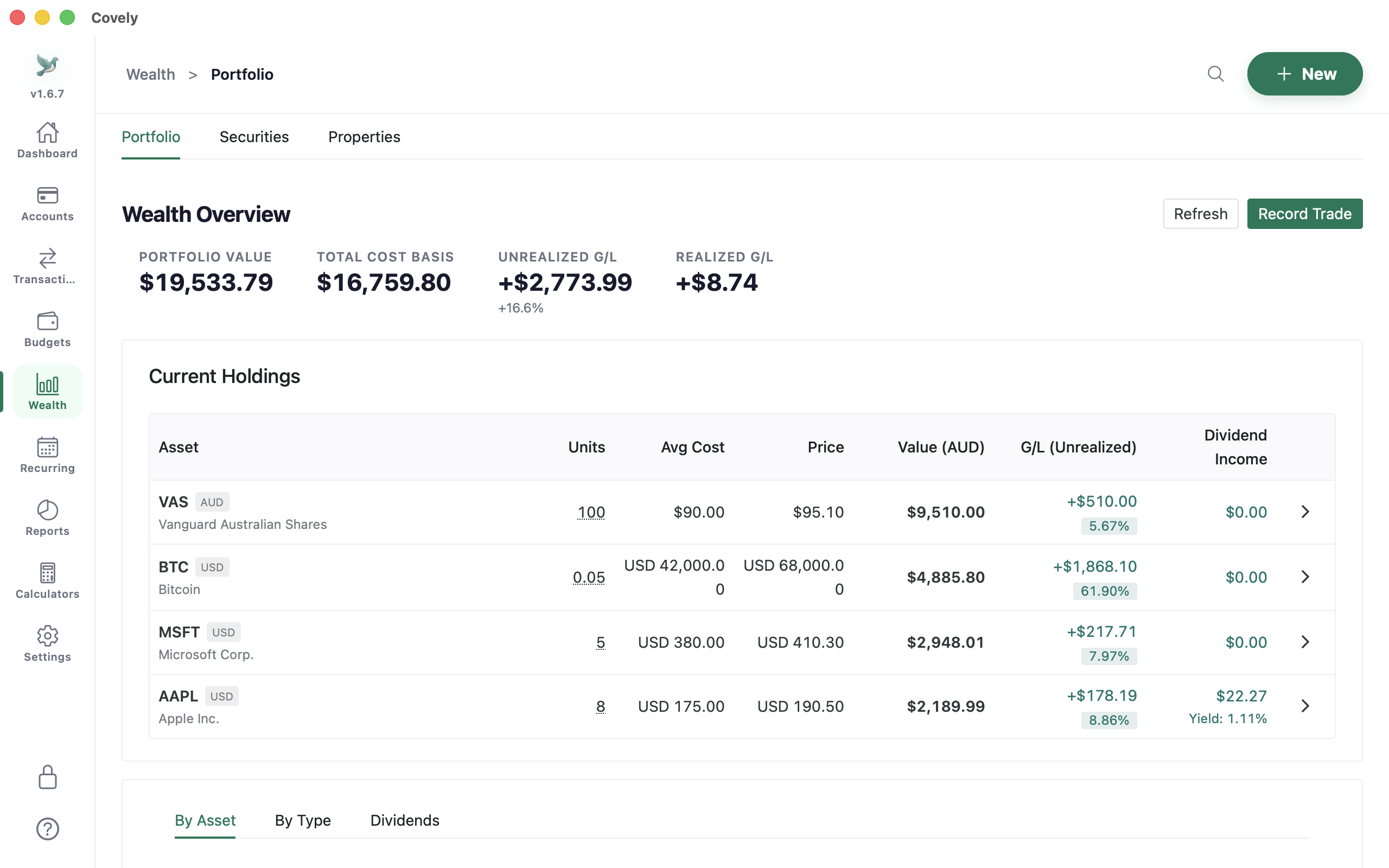
Monitor your long-term assets and investments. The Wealth module offers a comprehensive look at your non-cash assets.
- Stock Portfolios: Add stocks and ETFs to portfolios. Track purchase prices, quantities, and current market valuations.
- Property & Valuations: Add physical assets (homes, commercial properties) and update values to view home equity.
- Real-time Asset Allocation: Review your asset distribution chart to balance cash, equities, and property investments.
Step 6: Reports Catalog & Tax Deductions
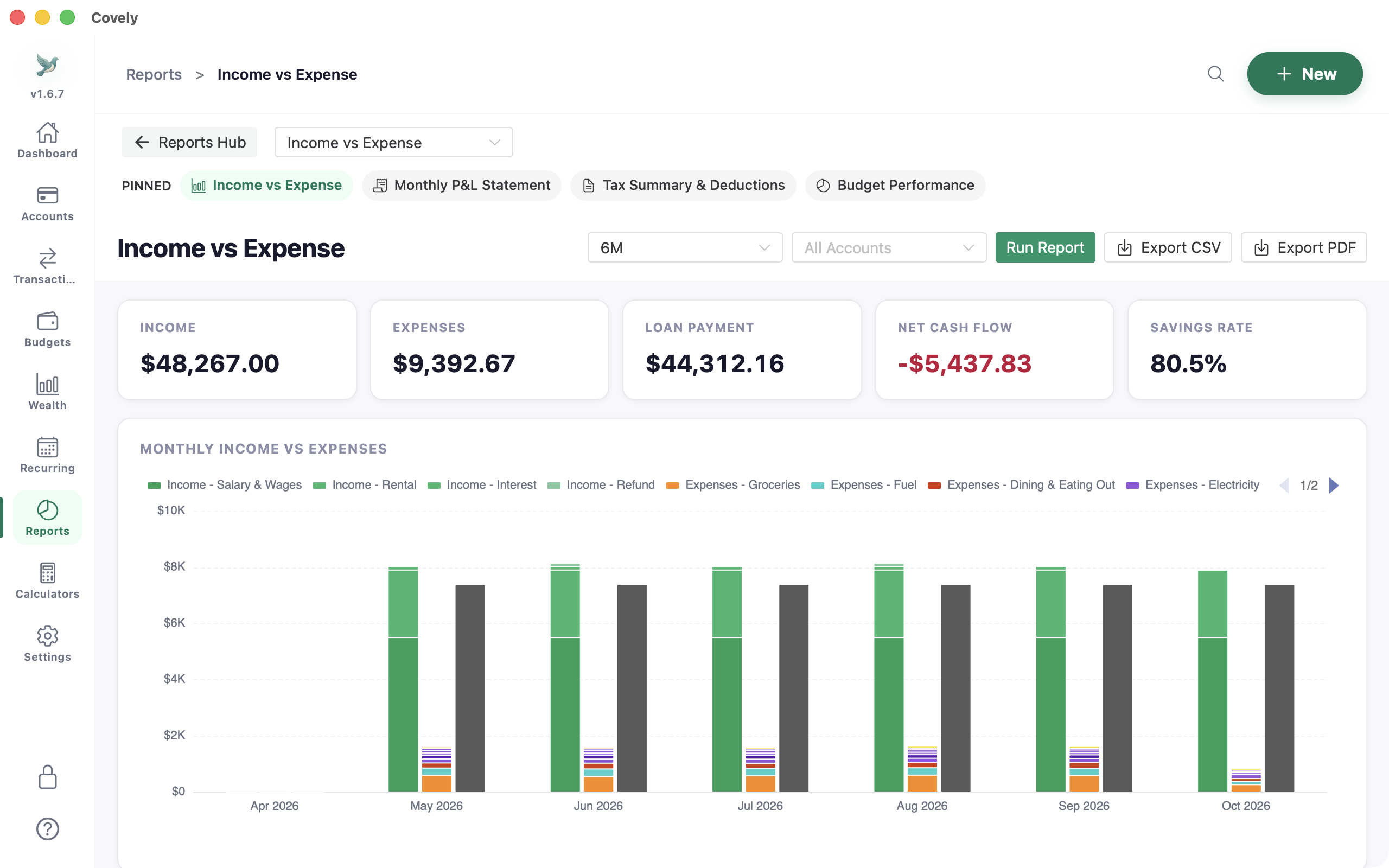
Unlock deep insights into your cash flow and net worth trends over time with Covely's Reports Catalog Hub.
- Monthly P&L & Balance Sheet: Generate detailed profit and loss statements and net worth balances over any customized timeframe.
- Tax Deduction Reports: Filter tax-deductible expense categories and export structured tax reports for tax season.
- Income vs. Expense: Visualizes your savings rate and easily identifies spending spikes.
- PDF Export & Granular Filters: Export reports to PDF with one click, filtered by accounts, categories, and tags.
Step 7: Custom Automation Rules
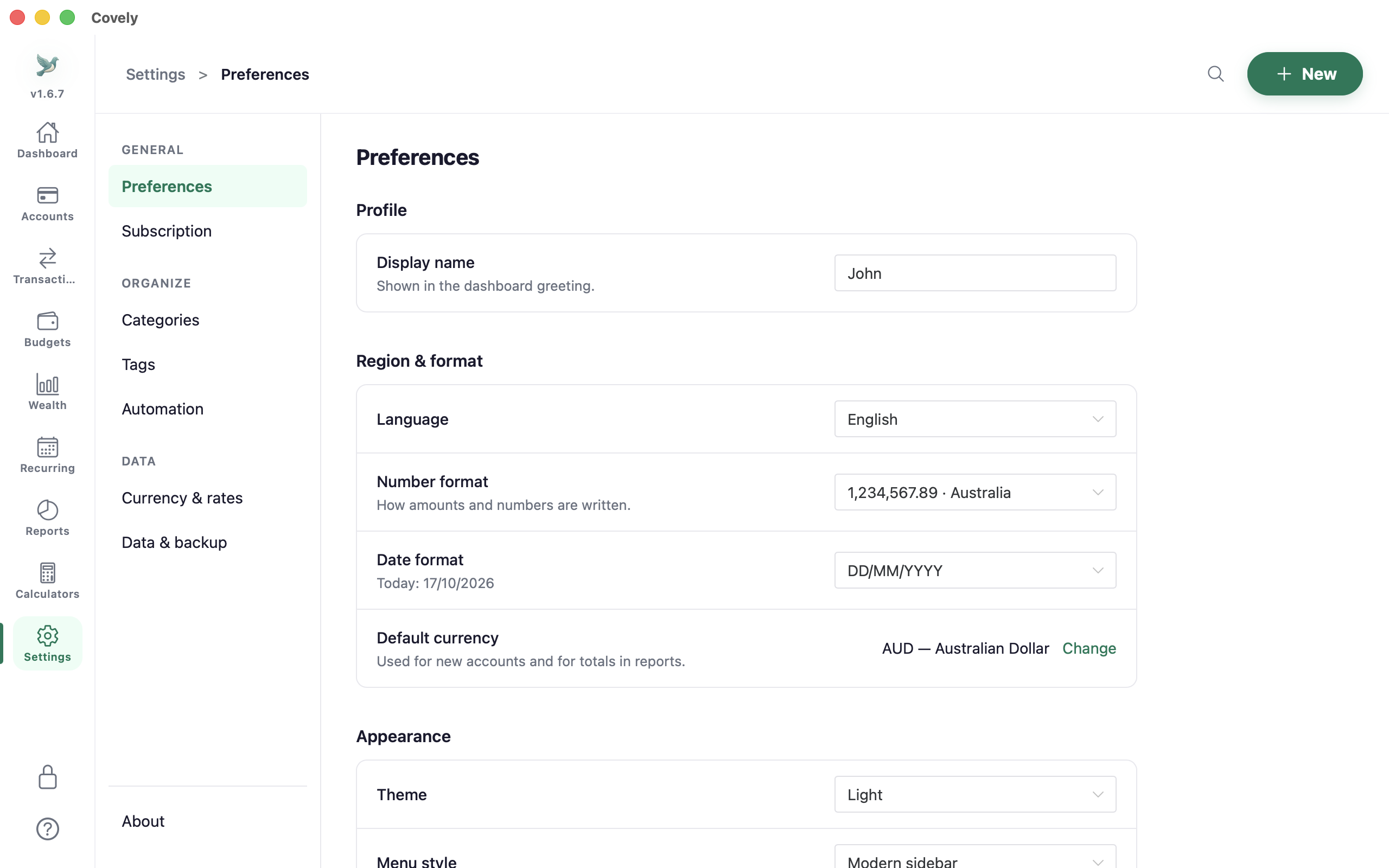
Automate your workflow. The Settings menu is grouped into General (Preferences, Subscription), Organize (Categories, Tags, Automation) and Data (Currency & rates, Data & backup).
- Default Currency: Set it under Settings › Currency & rates. It's used for new accounts, and balances in other currencies are converted into it for net worth and reports.
- Auto-Categorization Rules: Under Settings › Automation, the Rules tab lists rules that run during import and manual entry, mapping payees or keywords (e.g., "Uber") to categories. Templates offers ready-made rules and Suggestions proposes new ones from your history.
- Preferences: Set your name, language, number and date formats, theme, table density and amount colours, and switch between the modern sidebar and the classic Microsoft Money-inspired menu. Changes save automatically.
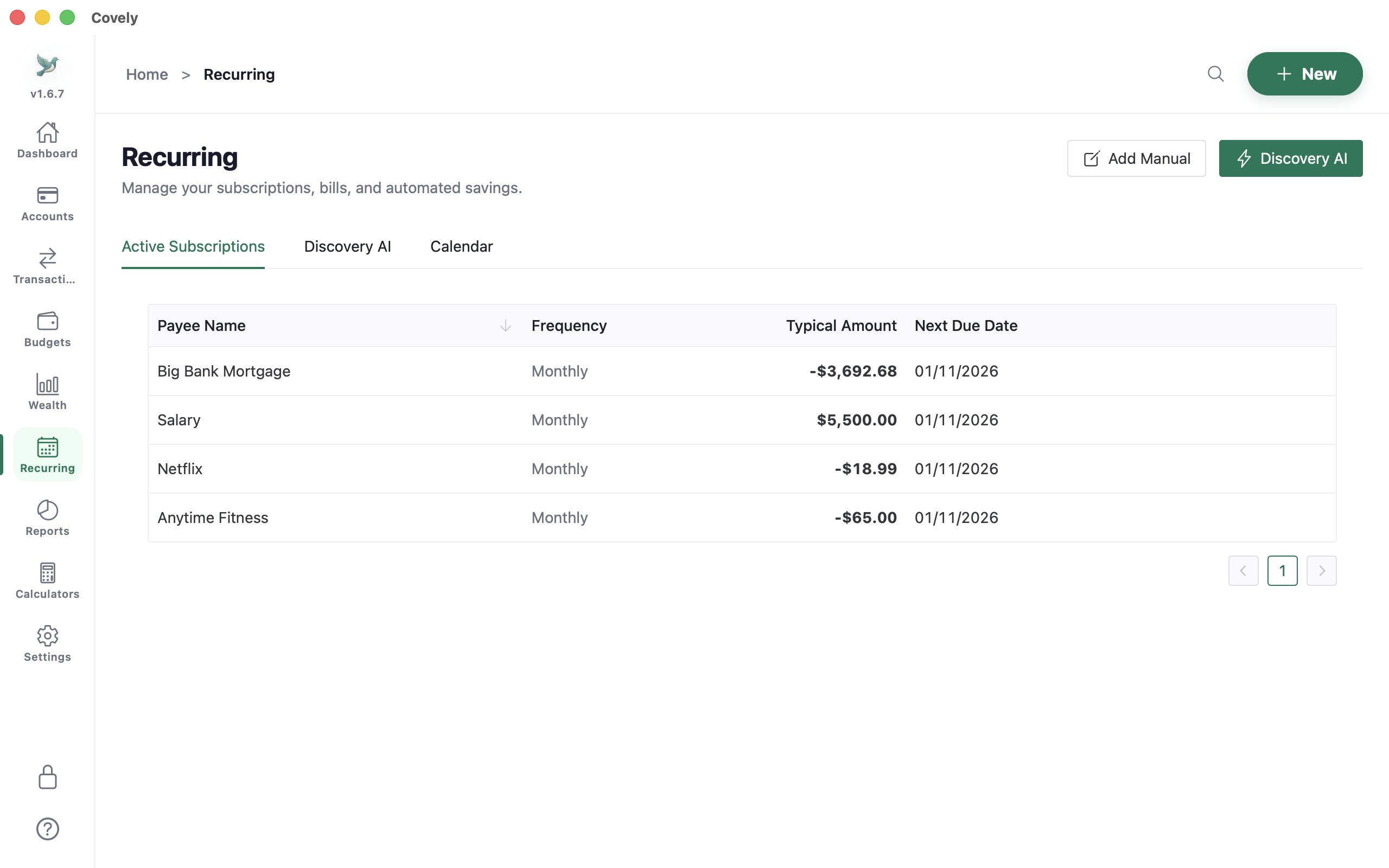
Step 8: Recurring Transactions
Automatically track your subscriptions and bills without manual entry.
- What it is: Recurring transactions are regular payments like subscriptions, rent, or utilities that happen on a predictable schedule.
- How to detect it: The system automatically analyzes your last 12 months of transactions during import to detect these patterns. You can confirm them in the 'Recurring' module under the 'Discovery AI' tab by clicking the "Confirm subscription" button so they appear on your dashboard.
- How to use it in Dashboard: Once confirmed, the system projects upcoming due dates on your dashboard to give you a clear view of your upcoming liabilities. After a projected transaction is paid, click the "Mark as paid" button to automatically advance its due date.
Step 9: Account Reconciliation
Verify your recorded transactions against official bank statements to maintain 100% financial accuracy and audit trails (MS Money Parity).
- What it is: Reconciliation compares your recorded transactions in Covely against your actual physical or digital bank statement to identify missing transactions, duplicate imports, input errors, or unexpected bank fees.
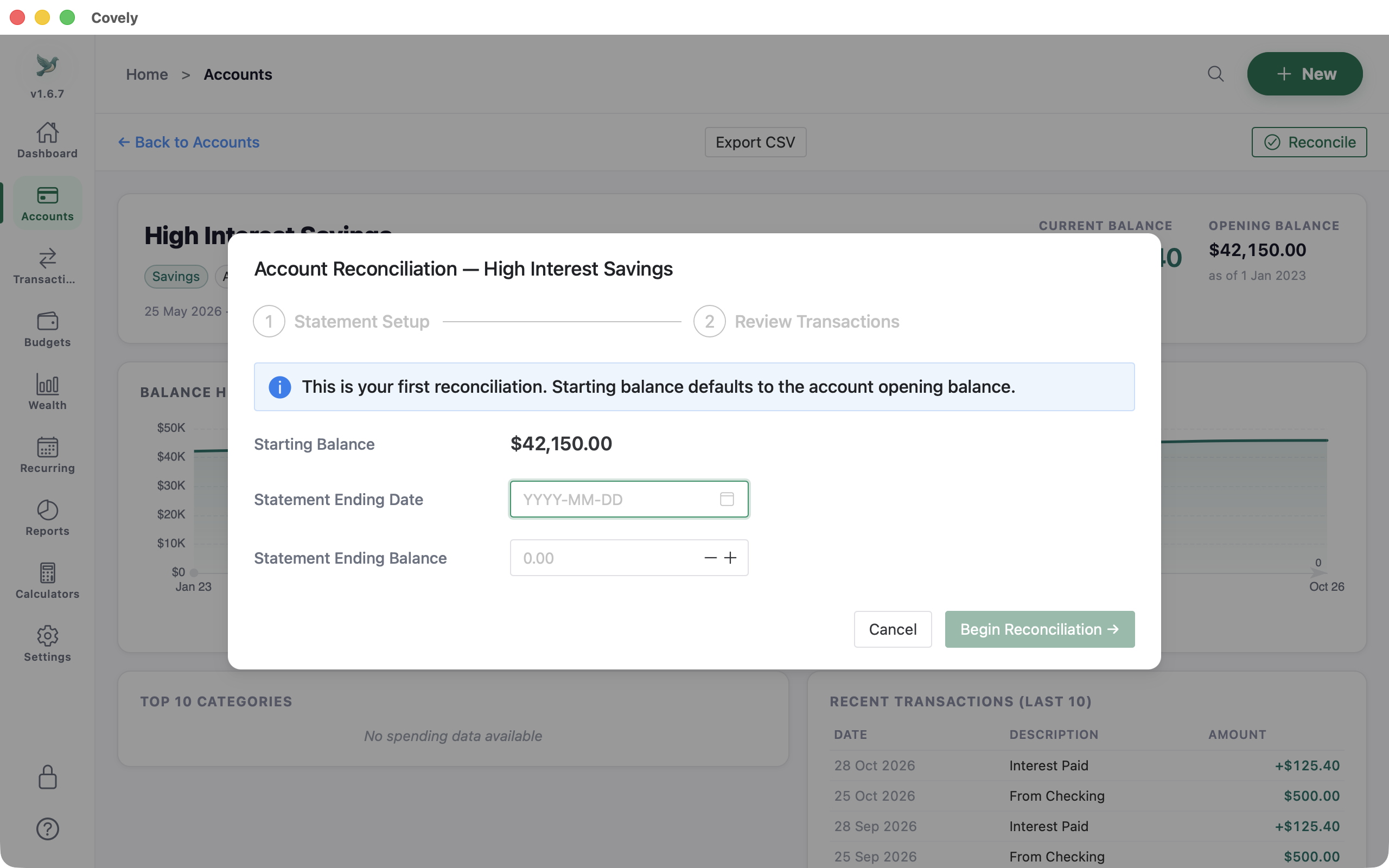
- How to start: Open the Accounts page, select any checking, savings, credit card, loan, or cash account, and click the Reconcile button in the top action bar.
- Live Balance Tracker: Enter the Statement Ending Date and Statement Ending Balance from your statement. As you check off verified transactions, the Difference tracker updates in real time until it reaches $0.00 (turning green).
- Efficiency Tools: Use the Check All / Uncheck All toggle button and filter tabs (All / Uncleared / Cleared) to process statement periods rapidly.
- Lock Records & History: Click Complete Reconciliation to mark checked transactions as Reconciled (🔒), locking them to protect your financial audit trail. View past reconciliations anytime under the account's Reconciliation History panel.
 Covely Finance