How to Manage Recurring Bills and Pending Charges Locally
Find your subscriptions, see what’s due next and forecast your balance, all on your own computer.
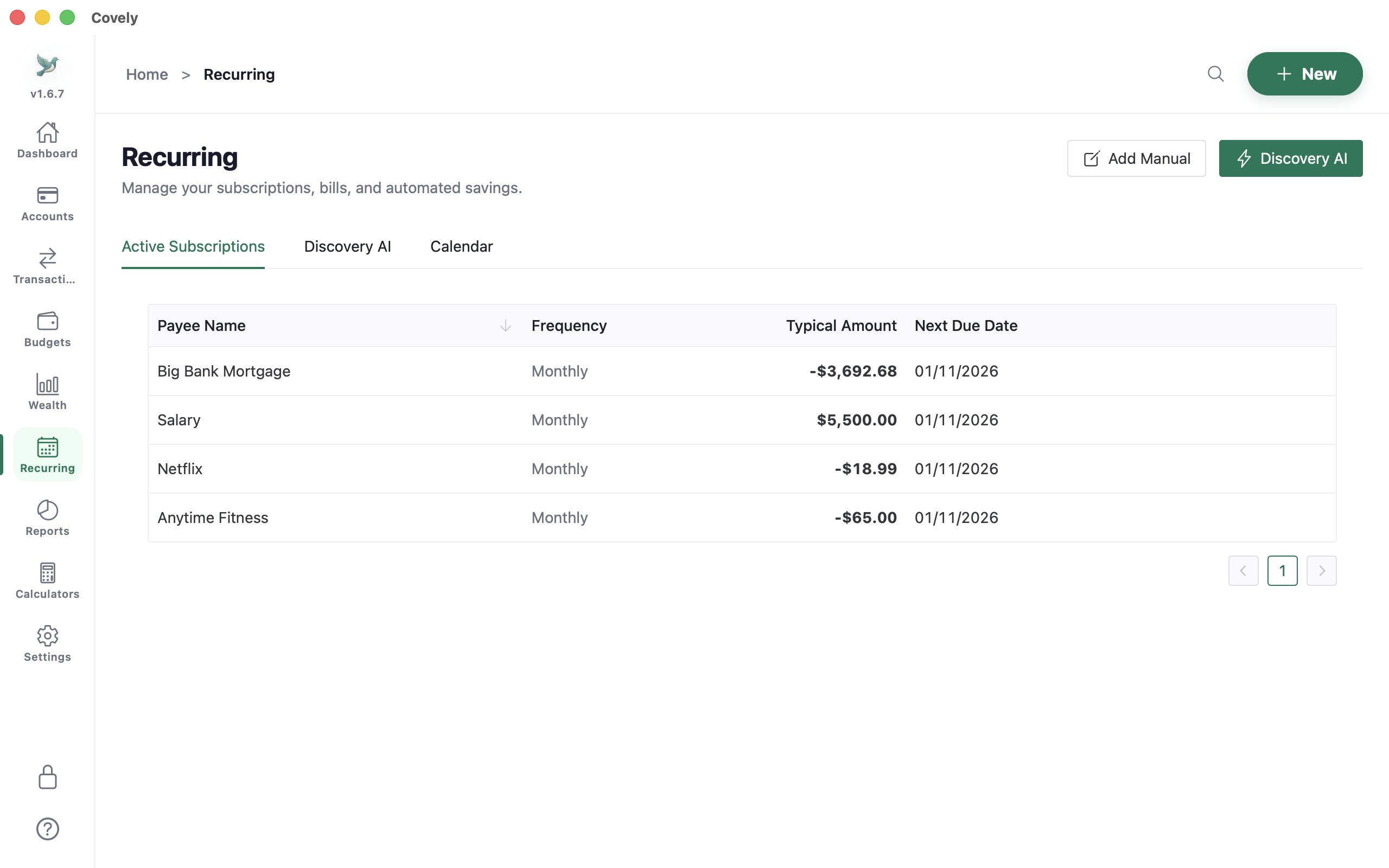
Keeping track of subscriptions and bills is one of the main reasons people sign up for cloud budgeting apps. You don’t need to send your transactions anywhere to do it. Here is how recurring payments work in Covely.
Three ways to set up a recurring payment
1. Let Covely find them (Discovery AI)
When you import transactions, Covely looks through the last 12 months for payments that repeat at a steady interval with a stable amount. Open Recurring → Discovery AI to see what it found, each with a match-confidence percentage. Choose Confirm Subscription or Ignore. The analysis runs on your computer; nothing is uploaded.
2. Add one by hand
Click Add Manual and enter the payee name, typical amount, frequency (weekly, bi-weekly, monthly, quarterly or annually) and next due date. This suits new bills that have no history yet.
3. Start from a transaction you already have
On the Transactions page, open the ⋯ menu on a payment (last month’s gym fee, say) and choose Make Recurring. The payee and amount are filled in for you.
What happens after that
Covely doesn’t create transactions for you. Instead it keeps track of when each payment is due:
- Upcoming bills appear on the dashboard and in the Calendar tab, marked Due soon or Overdue.
- When you import a payment that matches, the next due date moves forward on its own.
- If you paid some other way, click Mark as Paid.
Your register only ever contains what actually happened at the bank, so it still reconciles against your statement.
Forecast your balance (PRO)
Because Covely knows your recurring bills and income, PRO can project an account’s balance 30, 60 or 90 days ahead, so you can see whether a large bill will land before or after payday.
Categorise imports with rules
Rules live in Settings → Automation. A rule matches on things like the description or merchant (for example, description contains NETFLIX) and sets the category. Before saving, Dry-Run / Test Rule shows which past transactions would match and which would change, so a too-broad rule is caught early. The Suggestions tab proposes rules based on how you’ve categorised things before. The free version allows 20 rules; PRO removes the limit.